

The Jamco Media Albums plugin extends the built-in WordPress playlist feature, providing options to add detailed information about an album or playlist, including track descriptions, purchase/listening options, and other album details.
Download the plug-in: Jamco Media Albums

Settings
Album settings are divided into three categories: General settings, album section headings, and album list (archive) settings.

General Settings
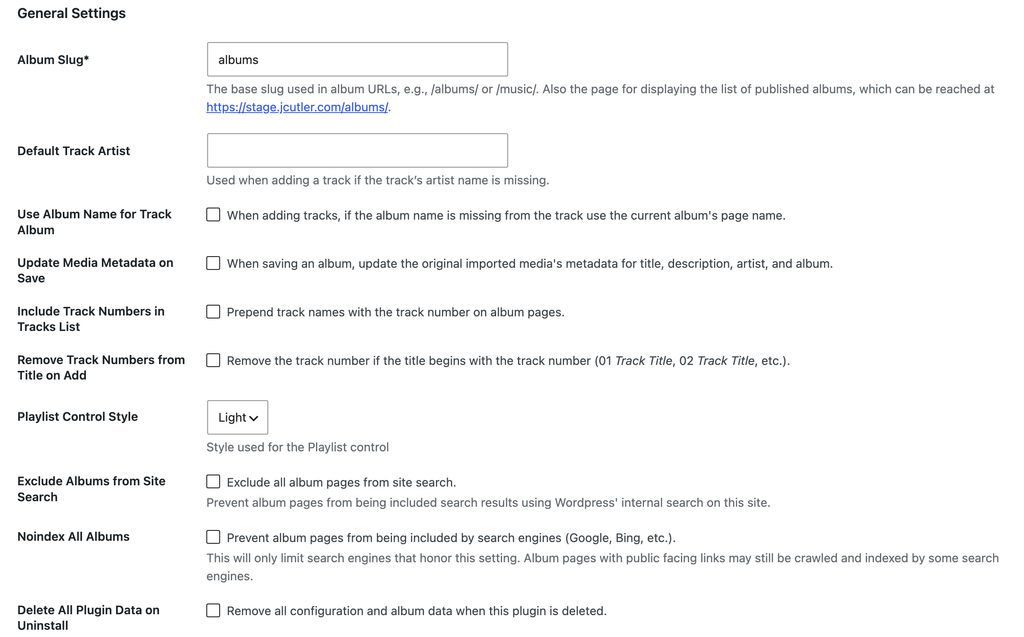
Album Slug
Used when setting individual permalinks for each album, or when viewing the albums list (archive) page.
Default Track Artist
Value to use if an imported audio file is missing the artist name.
Use Album Name for Track Album
If an imported track is missing the album name, use the album’s title as the album name.
Update Media Metadata on Save
Check this option to permanently change the metadata associated with the media files when saving an album. This can be useful if the imported media files have a generic description and you intend to reuse those files in different albums as a separate playlist. This option is can also be set on individual albums when adding/updating.
Include Track Numbers in Tracks List
When displaying an album, prepend the track name with it’s numeric position in the album tracks.
Remove Track Numbers from Titles on Add
Often mp3/wav files are prepended with the track number (“01 You Started It”). The plugin offers an option to add the track number based on the playlist order, so this setting will remove the number from the track title when importing your audio files.
Playlist Control Style
Which WordPress playlist style to use when displaying the playlist. Available options are Light or Dark.
Exclude Albums from Site Search
Use if you prefer not to have album details included in your global site search. When set here, this will apply to all albums. If left unchecked, this can be set on an album by album basis.
Noindex All Albums
Use to discourage search engines from crawling your album pages.This can be set per album if left unchecked.
Delete All Plugin Data on Uninstall
Check this option to remove all album data and settings from the database when the plugin is removed. This does not affect audio files in your media library.
Album Section Headings

Each of these entries corresponds to the headings displayed for each section on individual album pages. If left blank, the heading will not be displayed for that section. Individual headings can also be set or overridden on any album page.
Albums List Settings
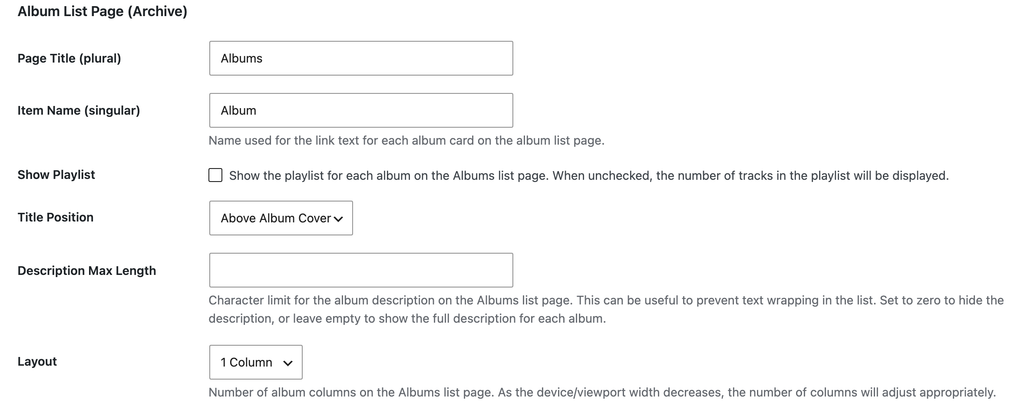
These settings correspond to text used when displaying the albums list (archive) page, and the link back to the albums list from any album page.
Page Title (Plural)
The title that is shown on the album list page.
Item Name (Singular)
Link text used for navigating to any individual album.
Show Playlist
Includes the album playlist on the albums list. Generally this should be left unchecked so the playlist will only be shown on the album page; multiple playlists on the list page can cause confusion if multiple playlists are playing at the same time.
Title Position
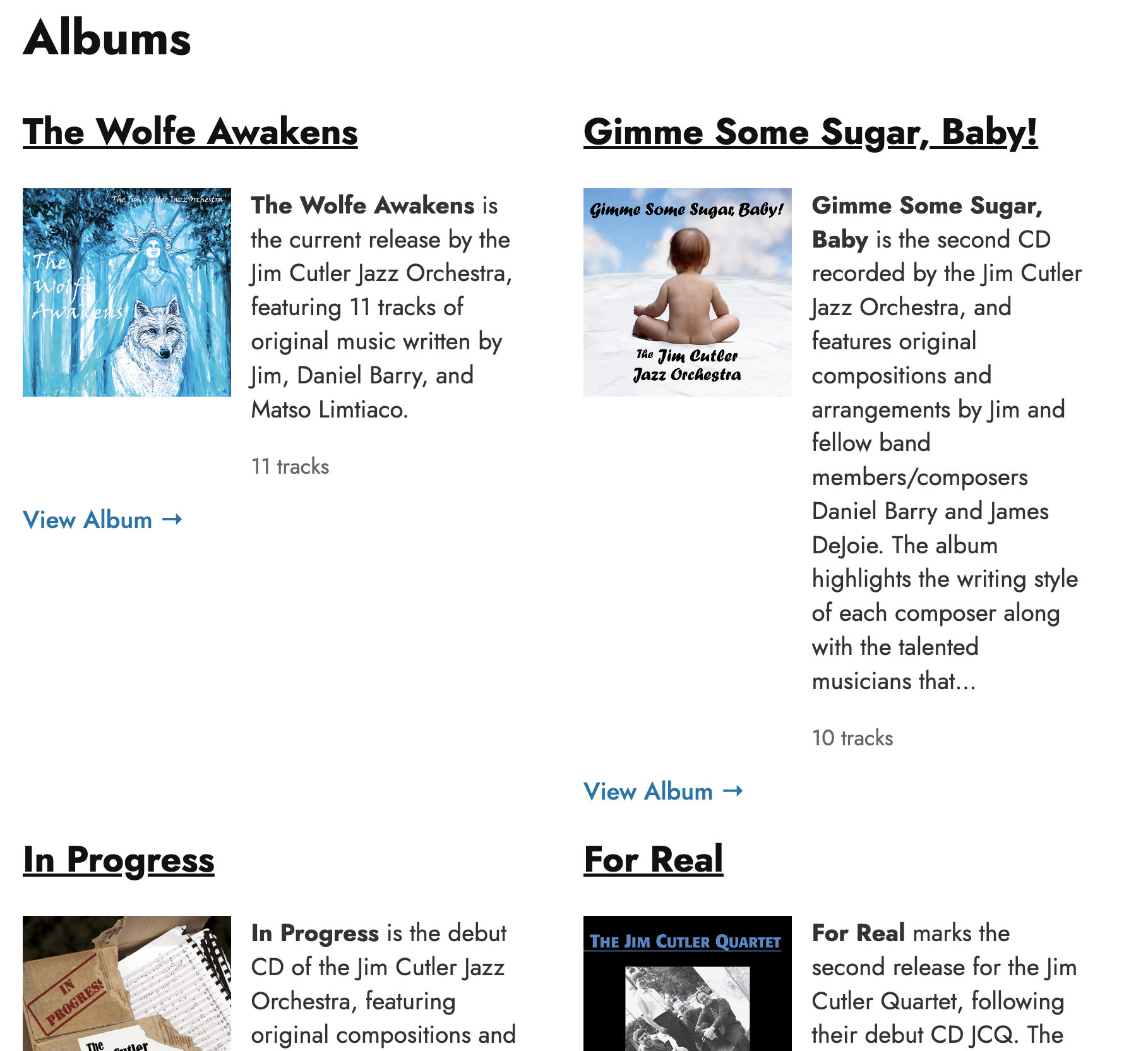
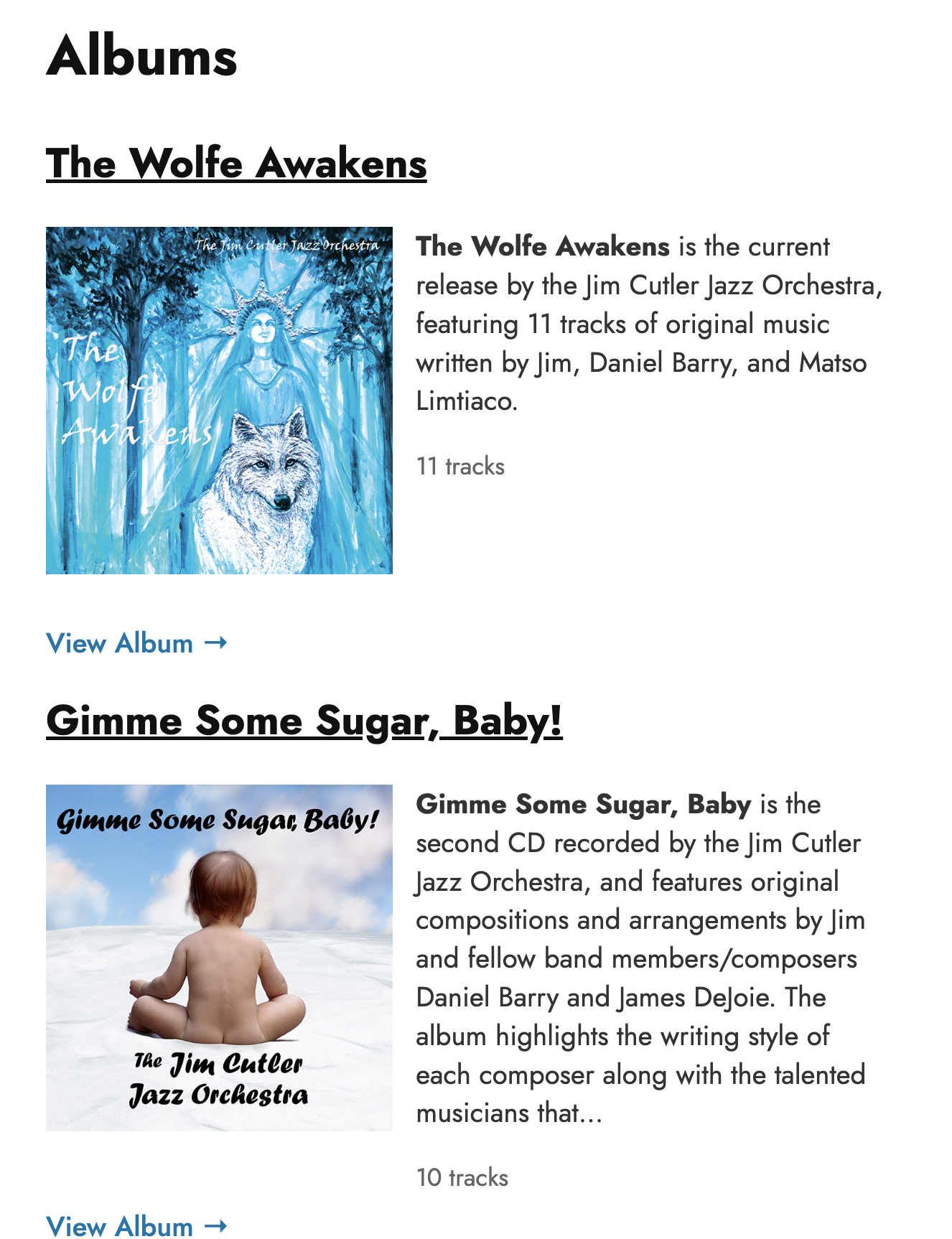
By default, the album title is displayed as a heading above each album listed. You can choose to have the title displayed directly under the album cover art instead; useful when using multi-column layouts.
Description Max Length
Maximum number of characters to be displayed for each album on the album list.
Layout
Number of columns used when displaying the album list, from one to four. The default archive page for some themes may not display multiple columns properly. If your theme doesn’t display them correctly, you can either set the columns to one, or can add a filter to your theme’s functions.php file that will use the Jamco Media Albums Plug-in archive template instead.
Add this code to your theme’s functions.php to override the theme’s default archive template:
add_filter( 'jamco_archive_template_settings', function( $settings ) {
    $settings['use_media_albums_template']       = true;
    $settings['show_media_albums_archive_title'] = false;
    return $settings;
} );
Parameters
use_media_albums_template
Flag indicating that the Jamco Media Albums Plug-in archive template should override your theme’s template.
show_media_albums_archive_title
If your theme renders the page title outside of its archive template, you can hide the title shown in the Jamco Media Albums Plug-in. This will avoid having the archive title (as specified above under Page Title) duplicated.
Both parameter values are boolean (true/false).
Album “Radio” Settings

This shortcode allows you to use any album as a looped “radio station.” You can specify a station name by entering a value here, or leave it blank if you prefer not to show a name along with the audio player. Note that the name of the song currently playing is always displayed.
Add/Edit Album
To add an album, click the Add Album button from the albums list or from the edit album page.
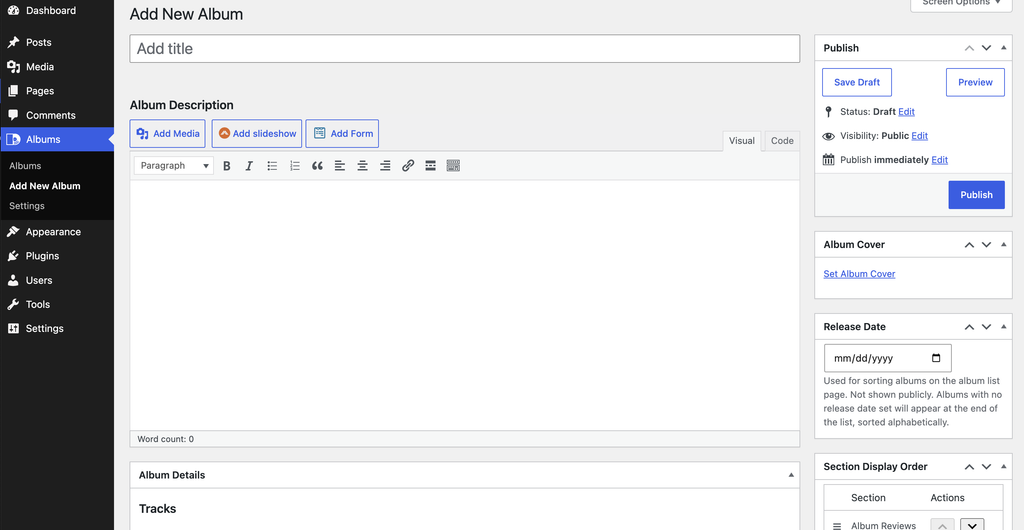
Primary Sections
Album Description
Rich text field used to describe the album or provide album details. This description will be displayed on the album page, the albums list, and can be shown within shortcodes as needed.
Tracks
List of tracks for the album along with settings for the Tracks section on the album page.
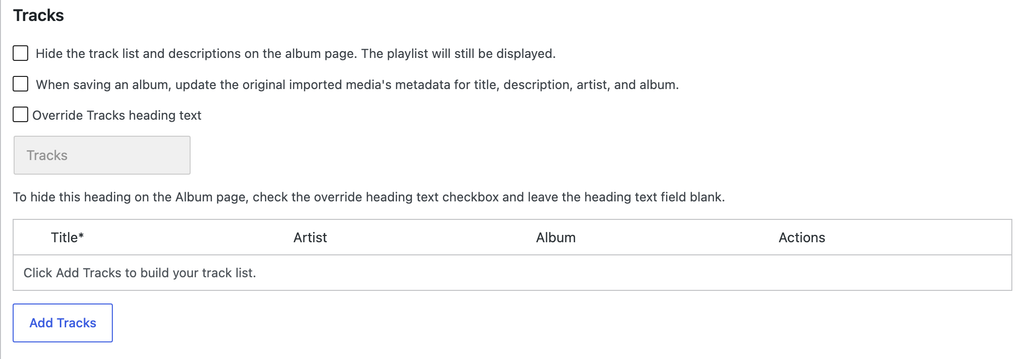
Hide Tracklist
This option allows you to hide the track list and descriptions on the album page if you prefer to only display the playlist.
Update Tracks Metadata
This option will permanently change the metadata associated with the media files when saving an album, and overrides the plug-in’s general setting.
Override Tracks Heading Text
This option allows you to enter a custom track heading text for this album – for example, instead of Tracks, you could change the heading to Songs. If you prefer not to display a heading for the tracks section, you can either set the albums plug-in global heading text for Tracks to empty, or check this checkbox and leave the text field blank.
Add Tracks
To add one or more track, click the Add Tracks button. From there you can selected audio files from the media library, or upload files as desired.

Files will be added to the track list in the order they are selected, but once added you can change the order of the tracks as needed.
Track List Management
In addition to adding tracks, you can reorder or remove tracks once they’re added.

1. Drag to Reorder
Use the three horizontal lines to drag a track to a new position on the page
2. Actions Column: Move track up/down/remove track
The action buttons allow you to perform one of three tasks on a track; you can move the track up one position, down one position, or remove it entirely.
Reviews
This section is intended for overviews of reviews your album has received, and will be displayed immediately after the album cover, description, and playlist on the album page.
As with the tracks section heading, you can override or remove the reviews section heading text.
Purchase Options
Purchase Options allow you to choose from various platforms to display link buttons on the album pages where visitors can purchase or listen to your album.
Purchase options display as link buttons on the album page, and if specified on the album list page. Click Add Purchase Option to add a provider, and choose from the list of platforms.
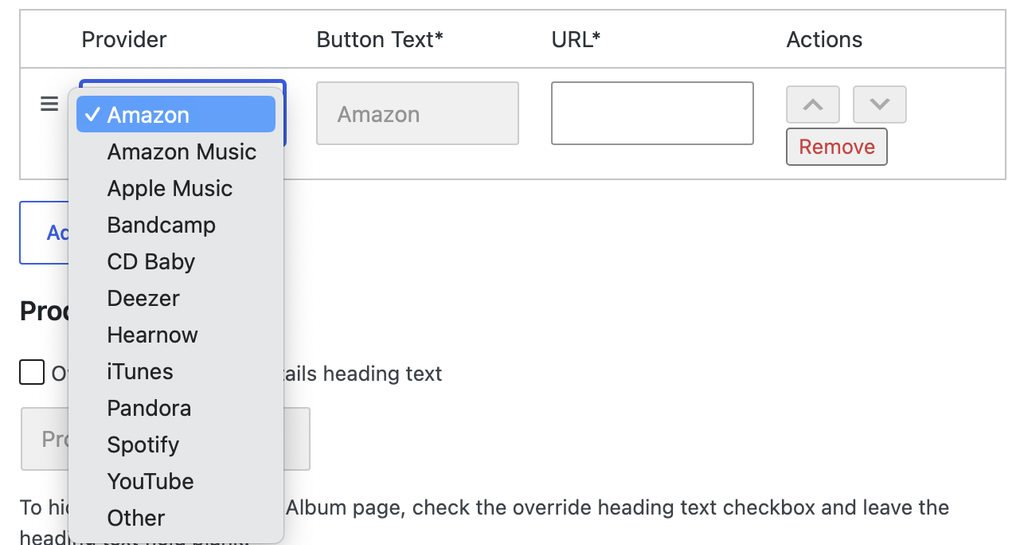
One you’ve selected a provider, enter the URL pointing to your album/music listing on that platform.
If your provider is not listed, choose Other and enter text to be displayed on the button along with the URL to your album/music listing.
Like the tracks list, you can rearrange the list of providers to your preferred order. You can also override or remove the section heading text.
Production Details
Use the Production Details section to list production information, such as producer, engineer, recording dates, or personnel.
Other Notes
The Other Notes section can be used for any additional information about your album.
Sidebar Sections
Album Cover
Cover image to display.
Release Date
Release date is used for the display order of albums on the albums list (archive) page. Albums without a release date will be displayed alphabetically after the last album that has a release date set.
Hide Track List
Hides the track list section on the album page. Useful if your tracks lack detailed descriptions, or to only display the album playlist.
Search Engine Visibility
When checked discourages search engines from indexing your album pages.
Shortcodes
Shortcodes are available to add album information on any page. The shortcodes allow you to add an album playlist, album information, or the audio (radio) player.
Playlist View – jamco_playlist
By default, only the playlist is displayed. Other elements can be added by using optional parameters (if not set, all default to false):
title=”true”
album_cover=”true”
description=”true”
link_to_album=”true”
Album View – jamco_album
By default, the album title, cover, description, purchase links, and link to view the full album are displayed. Elements can be added or removed by setting optional parameters to true or false.
Headings for the purchase links, track list, reviews, production details, and notes sections can be hidden using the section_headings parameter. This parameter accepts a comma separated list of headings to display. Accepted values are purchase_links, tracks, reviews, production, and notes), or “all” or “none”, with the value “all” used if the parameter is omitted. For example, to show only the headings for track list and production details, set section_headings=”tracks,production”. If a heading text field is set to empty this parameter will have no effect on displaying that heading.
Default values when a parameter is omitted are shown below:
title=”true”
description=”true”
purchase_links=”true”
playlist=”true”
reviews=”false”
tracks=”false”
production=”false”
notes=”false”
link_to_album=”true”
section_headings=”all”
Audio Player (aka “Radio”) – jamco_radio_player
Displays an audio player for the specified album. The album tracks are looped once playback has started. The album cover art is used as a background image for the player.

The browser controls default playback and muting; the album will often autoplay if the user has previously played that album and let the audio player continue to play when exiting the page (most browsers default to muted with no autoplay). Place only one per page. By default, the player uses a “light” style geared for darker album art.
Optional Parameters
style: light/dark. Default value is light.
text_position: left/right/center/hide. Default value is left.
station_name: Name to display for this album’s station. Defaults to the Station Name setting in the main Album settings. Enter an empty string (station_name=””) to hide the default name.
show_background: true/false. Default to true; set to false to hide the album cover/art background.
height: Height of the player (pixels recommended, e.g., 200px). Defaults to show the full cover art image if one is set for the album; if no cover is added the default height will be the minimum required to display the player.
Overriding the Theme’s Post Template
As noted above with the album list (archive) template, some themes’ post template may constrain the layout of the album page, or include navigation options that may not fit your workflow. You can add a filter that will bypass the theme’s post template and instead use the plug-in’s template.
Add this code to your theme’s functions.php to override the theme’s default post template:
add_filter( 'jamco_use_album_template', '__return_true' );Once this filter is added, the plug-in’s template will be used for the content area when the album page is viewed.
Screenshots
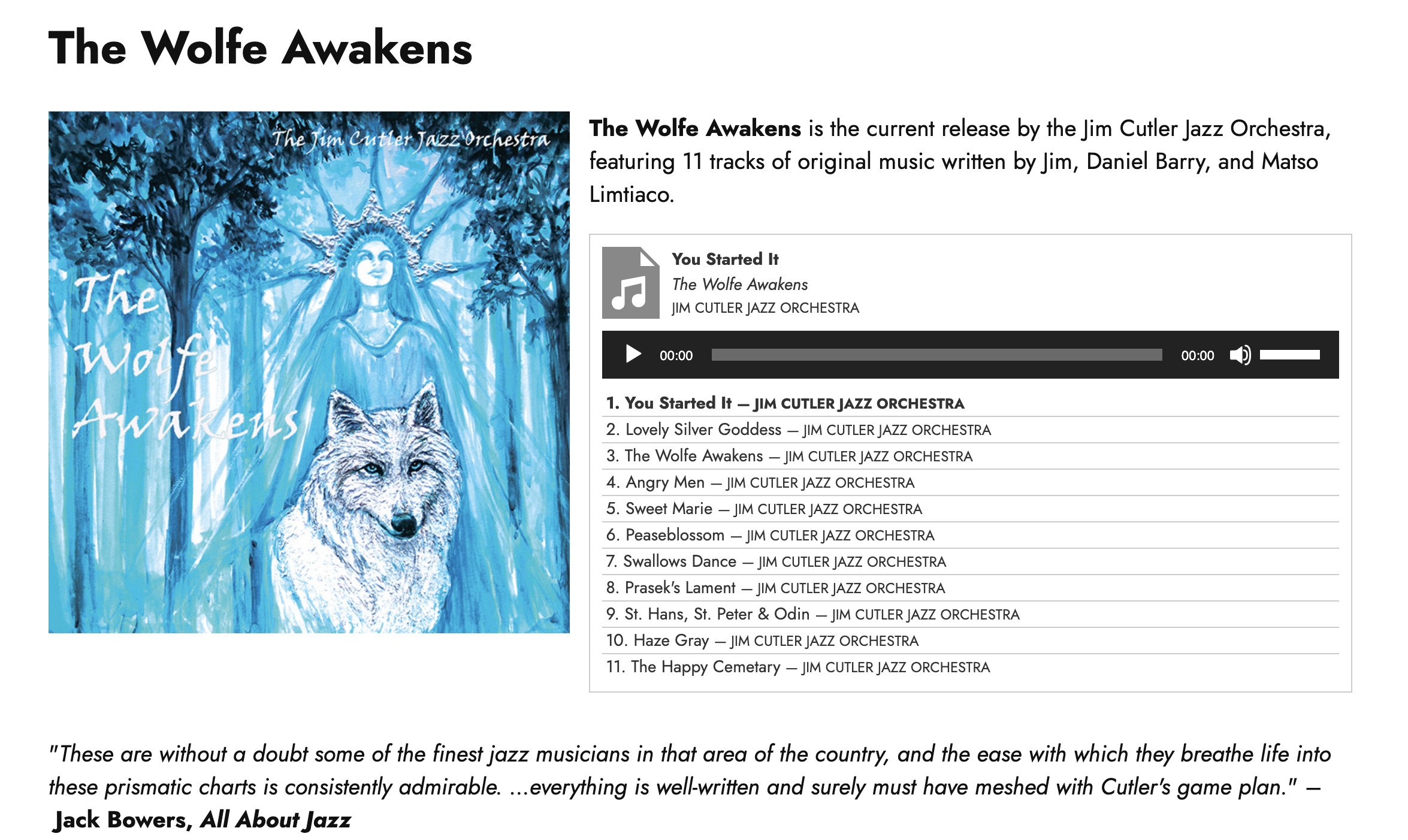 Album Page
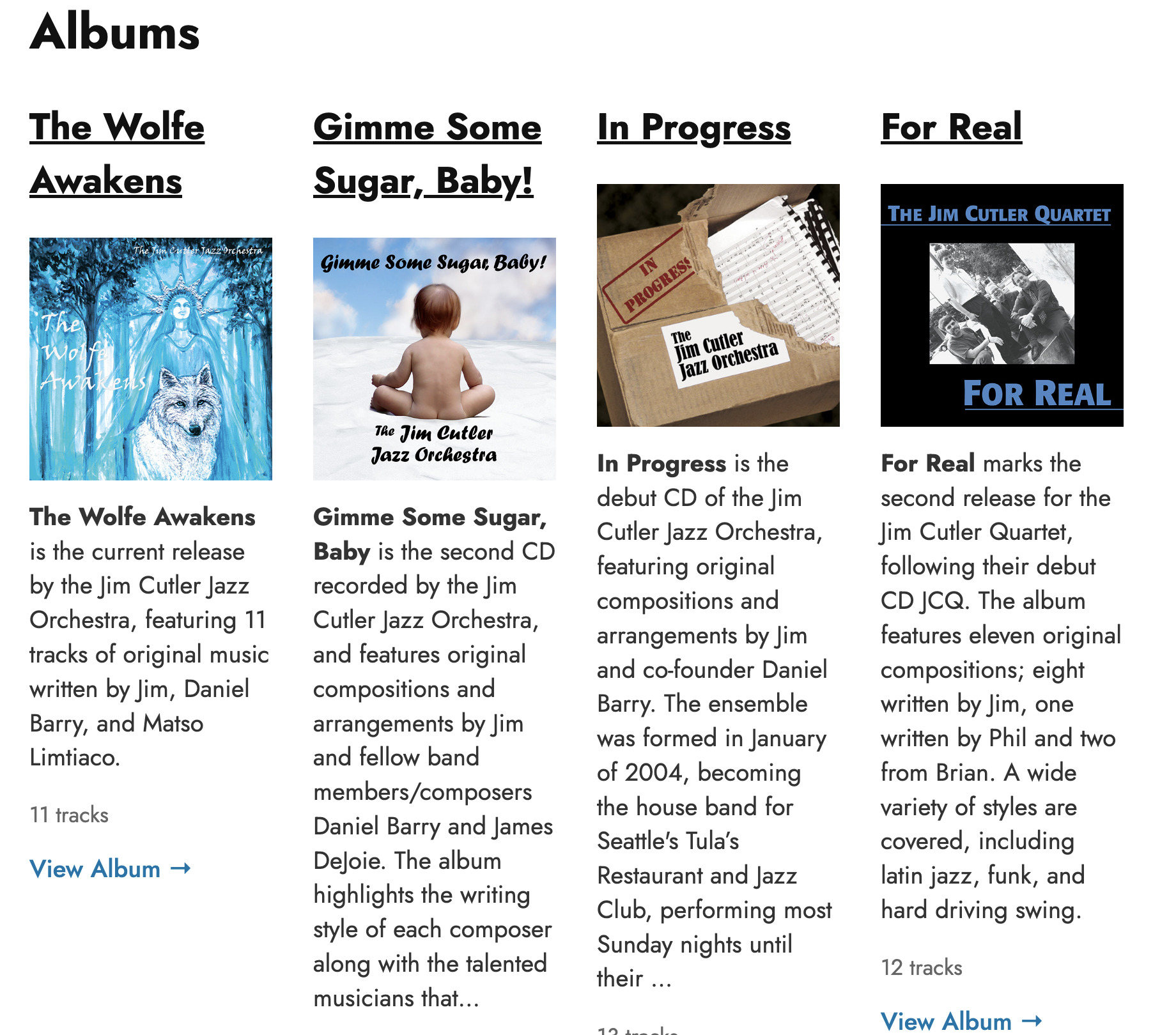
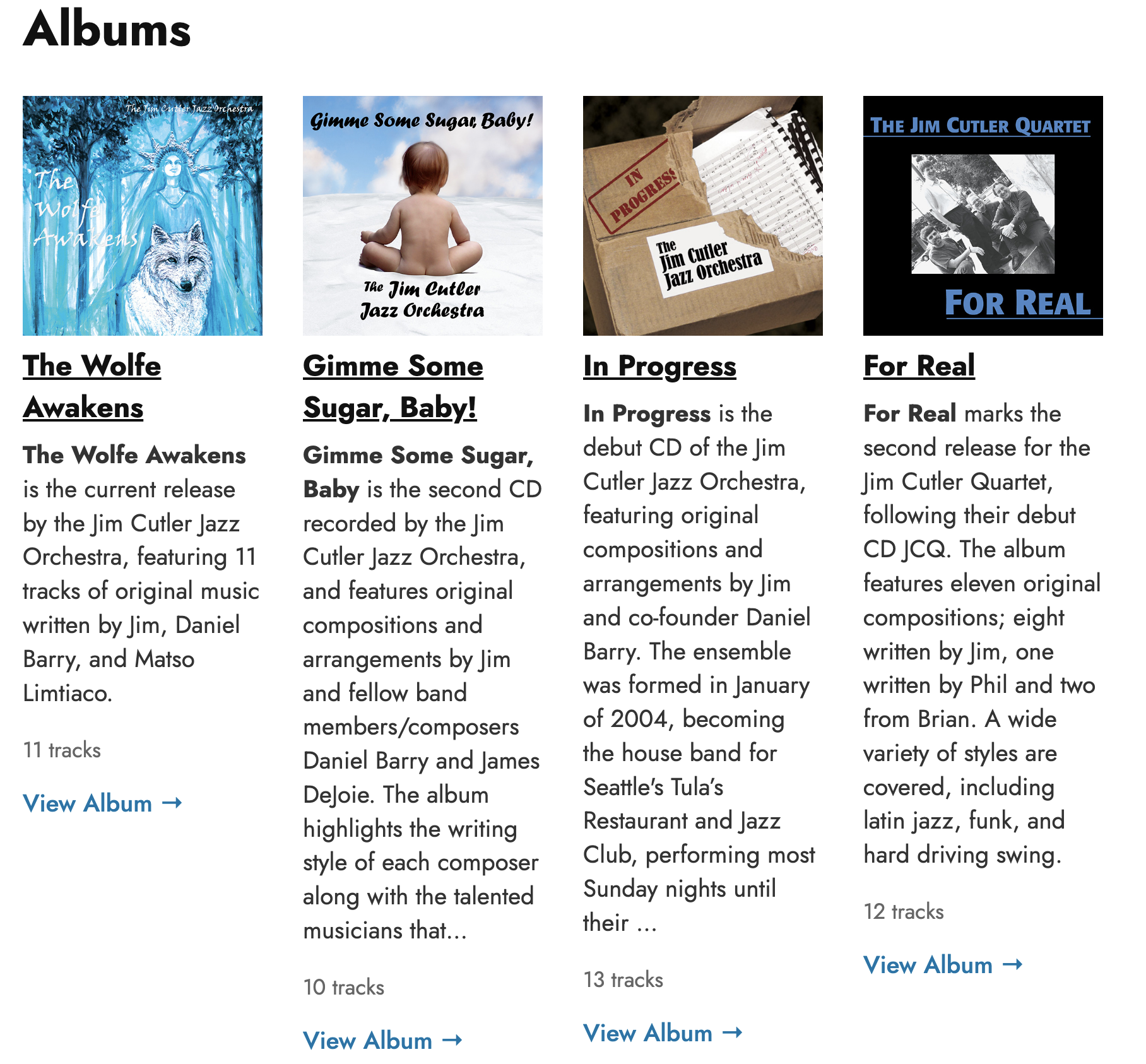
Download and Install
Use the link below to download the plug-in.